Tutorial 05 – Simple Hierarchy
What We Learn
How self-referencing hierarchical structures behave in different situations.
Scenario, Mapping And Modeling
Typically organization units form a hierarchy of sorts, where any unit can have any number of subunits, resulting in a treelike structure where every branch can be of arbitrary depth. In this tutorial the model is expanded with the content of an Organization master system which contains only the organization data. The simulated source system is OrgMaster, hence it will need a new mapping file, 03_Mappings_OrgMaster.csv.
A quick look at the data will reveal that this should happen:
| Source table… | …goes to the Staging Area as… | …and maps to the Class |
|---|---|---|
| DS_DemoData.OrgMaster.ORGANIZATION | OrgMaster.RAW_ORGANIZATION | Organization |
| DS_DemoData.OrgMaster.ORGANIZATIONUNIT | OrgMaster.RAW_ORGANIZATIONUNIT | Organization unit |
Model the new classes as below in a new Organization submodel. Set Code as the Business key in both cases. Mark the classes for implementation.
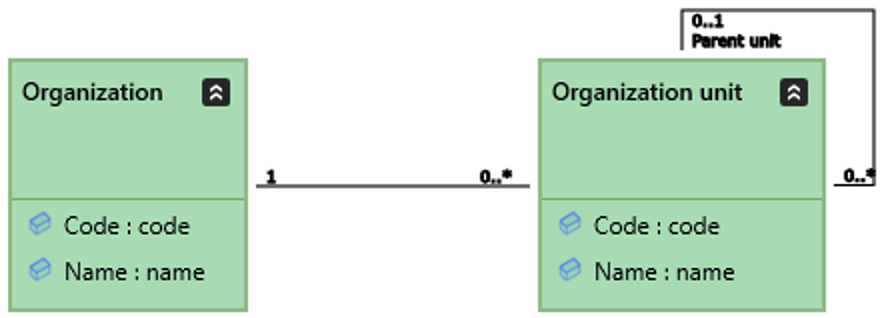
Points of interest:
- The multiplicity in the Parent unit end is 0..1: an Organization unit may have a parent unit, or it may not.
- The multiplicity in the other, unnamed, end is 0..*. An Organization unit may have other units as child units, or it may not have.
- To draw the self-reference, sort drawing the association as usual, then return to the top of the same class you initiated the action from and drop it there. Alternatively, use a menu command.
- When assigning the role name Parent unit, make sure you name the Association End and not the Association itself.
Map the table structure to the classes and run the entire model. There may be a critical error, depending on how you built the mappings. If there was, try to figure out what the actual error is. Hint: fixing the actual error may not be possible for you, but there are a couple of things you can do about it immediately. Do the right thing.
With no error, you should now have the following structure representing these two new classes (select the Organization submodel and click Open Implementation in ER Diagram to view the diagram, then show the columns in each table and click Arrange):
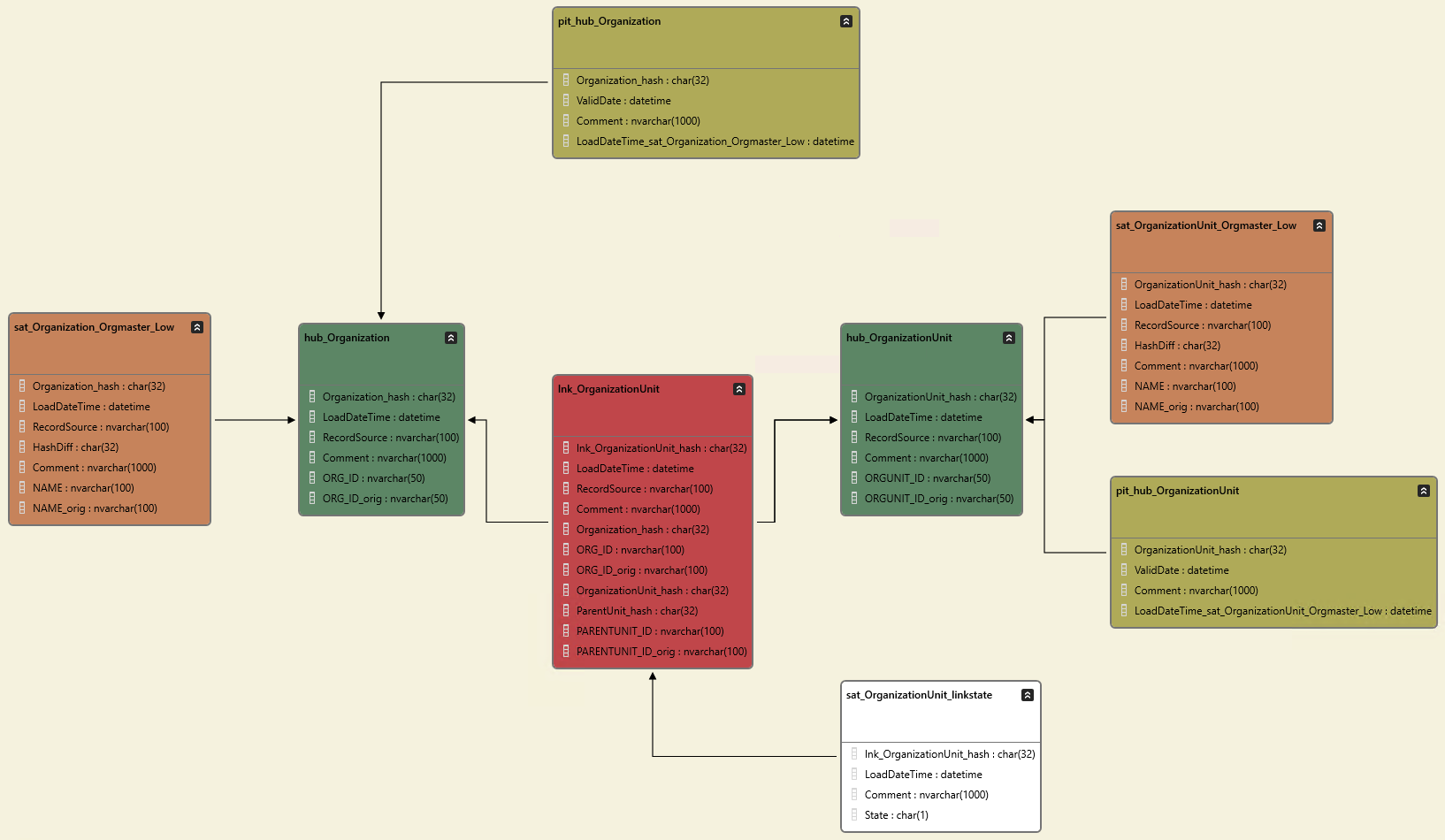
Note: the diagram draws the two links between lnk_OrganizationUnit and hub_OrganizationUnit on top of each other, but you can verify that the columns containing the hierarchical information are indeed both in the link.
Make a new deployment package for the two new Organization classes and install it.
Run Tutorial Scripts
Run the following tutorial script commands fron the Help -> Tutorials -> DSharp Studio Professional Course -> Hierarchy Tutorial menu and inspect the results.
| Script | Source data | Main points of interest |
|---|---|---|
| Step 1: Load Organization Hierarchy | There is only one top-level unit that has a child; 1000.3 has ABCD as child. | The hierarchy is identical to the source. |
| Step 2: Load Organization Changes | ABCD has moved from 1000.3 to 1000.1 There are new 2:nd level units. |
The link containing the 1000.3 / ABCD parent/child information has been hidden using the sat_OrganizationUnit_linkstate table (a D-row has been added). |
| Step 3: Load More Organization Changes | ABCD has moved back to 1000.3 The 2:nd level units 1000.1.1 and 1000.1.2 have been removed. |
The link containing the 1000.3 / ABCD parent/child information has been reinstated (a C-row has been added to rollback the previous D-row). The 1000.1 / ABCD relation has been hidden, but the 1000.1 / 1000.1.1 and 1000.1 / 1000.1.2 relations are still visible for historical purposes (older data may still reference these). |
Note: The relations that were removed from the source that still remain visible in the view can be hidden by turning on State tracking method as well as the soft delete functionality for Organization unit before loading the data. This will behave as intended when the data that is loaded is complete (full loads). For incomplete data (incremental loads) other measures need to be taken. This situation is covered in a future tutorial.